Imagine Weave AI Image Models: nano-banana-2.1 vs gpt-image-2.5
Compare nano-banana-2.1 and gpt-image-2.5 on Imagine Weave. Learn which AI Image Generator model to pick for text to image and image to image.
 Imagine Weave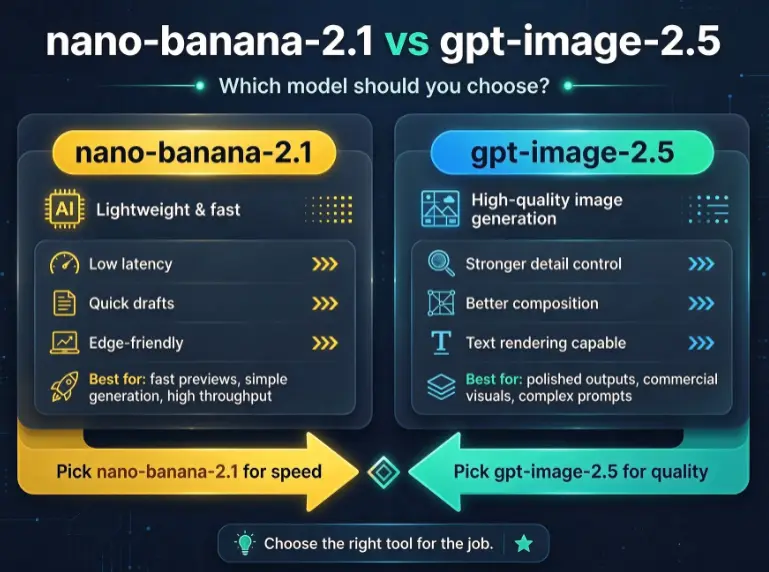
Choosing a model is the fastest way to change your results in the Imagine Weave AI Image Generator. This guide compares nano-banana-2.1 and the gpt-image-2.5 family so you can pick the right path for text to image or image to image.
Why model choice matters on Imagine Weave
The same prompt can feel soft, sharp, warm, or dramatic depending on the model. Imagine Weave groups models under openai and google in the sidebar and model picker, so you can switch without leaving Text to Image or Image to Image.
Quick comparison
| Need | Better starting point | Deep dive | | --- | --- | --- | | Everyday drafts, flexible restyles | nano-banana-2.1 | nano-banana-2.1 guide | | Punchy contrast / vivid scenes | gpt-image-2.5-flare | gpt-image-2.5 guide | | Warm glow / brighter mood | gpt-image-2.5-sunburst | gpt-image-2.5 guide | | Simple openai baseline | gpt-image-2 | gpt-image-2.5 guide |
Long-tail workflows creators ask about
“Best AI Image Generator model for product photos”
Start with nano-banana-2.1 for clean drafts, then A/B with gpt-image-2.5-flare if you need stronger material contrast. Use 1:1 or 16:9 and a white or linen background prompt.
“AI image to image restyle without losing composition”
Upload a reference in Image to Image, keep the subject explicit in the prompt (“same bottle shape”), and test nano-banana-2.1 first. Move to gpt-image-2.5-sunburst when you want warmer lighting shifts.
“Text to image prompts for social creatives”
Write subject + style + lighting. Generate once on each family, then keep the winner. Full prompt patterns live in the nano-banana-2.1 and gpt-image-2.5 posts.
How to switch models in Imagine Weave
- Open the workspace.
- Click Image Model.
- Expand openai or google.
- Select the model, set ratio, generate.
You can also open the model popup from the toolbar button under the prompt box.
Internal links to keep exploring
- Text to Image workspace
- Image to Image workspace
- Pricing for generation credits
- About Imagine Weave
- Contact
Bottom line
Use nano-banana-2.1 when you want a flexible Google-side everyday AI Image Generator. Use gpt-image-2.5-flare or gpt-image-2.5-sunburst when you want a more directed OpenAI look. Then iterate inside Imagine Weave until the frame matches your brief.