gpt-image-2.5 Guide: Flare, Sunburst, and Creative Play on Imagine Weave
A practical guide to gpt-image-2.5-flare, gpt-image-2.5-sunburst, and related AI Image Generator workflows on Imagine Weave.
 Imagine Weave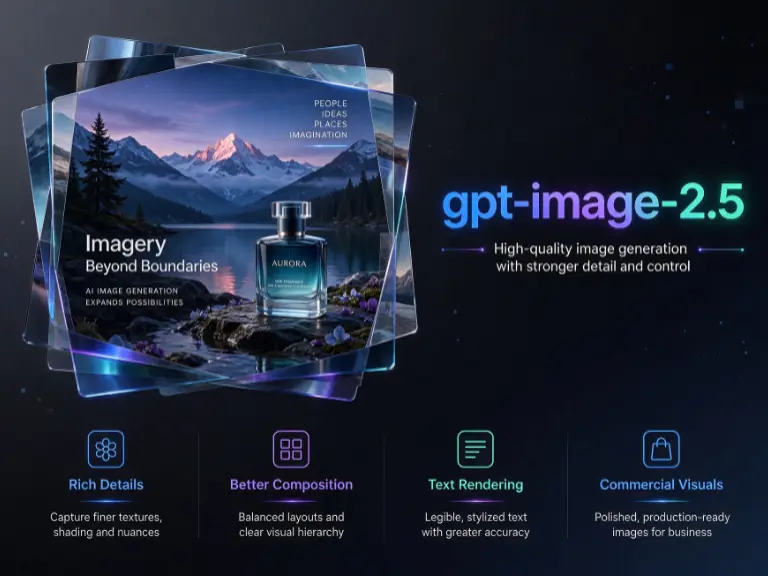
gpt-image-2.5 is the OpenAI-side model family inside the Imagine Weave AI Image Generator. On our workspace you will mainly see gpt-image-2.5-flare, gpt-image-2.5-sunburst, and the related gpt-image-2 option under the openai group — ideal for polished text to image and controlled image to image edits.
What is gpt-image-2.5 on Imagine Weave?
gpt-image-2.5 refers to a set of image models you can pick from the Image Model menu. Imagine Weave surfaces them so creators can generate campaign visuals, product mockups, and style explorations without switching tools.
- gpt-image-2.5-flare — punchy contrast and vivid scenes
- gpt-image-2.5-sunburst — brighter, warmer, more “glow” oriented looks
- gpt-image-2 — a solid baseline when you want a simpler openai option
If you are still comparing Google models, read our nano-banana-2.1 guide next.
When gpt-image-2.5 shines
- Brand and social creatives that need a finished look
- AI Image Generator prompts with strong style direction
- Product hero shots and lifestyle scenes
- Image to image restyles where you want clearer lighting changes
- Side-by-side tests against nano-banana models on Imagine Weave
How to run gpt-image-2.5 (workflow)
- Go to Text to Image or Image to Image.
- Open Image Model → openai.
- Select gpt-image-2.5-flare or gpt-image-2.5-sunburst.
- Set ratio (
1:1for posts,3:4for portraits,16:9for banners). - Prompt with subject first, then style and lighting.
- Generate, then iterate with small prompt changes.
Full catalog context: Imagine Weave AI image models explained.
Creative play ideas for gpt-image-2.5
Text to image long-tail prompts
- “gpt-image-2.5-flare AI Image Generator scene: rainy neon street, cinematic reflections, no text”
- “Imagine Weave product render of wireless earbuds, softbox lighting, reflective table”
- “gpt-image-2.5-sunburst golden-hour travel photo of coastal cliffs, warm haze”
Image to image experiments
- Keep composition, change season: “same street, winter snow, golden hour”
- Keep product shape, change material: “same bottle, frosted glass, studio softbox”
- Keep face, change wardrobe: “same portrait, linen shirt, outdoor daylight”
Flare vs sunburst quick rule
- Choose flare when you want sharper drama and contrast
- Choose sunburst when you want warmer glow and softer highlights
Prompt patterns that work well
- Subject — who or what is in frame
- Medium — photo, illustration, product render
- Lighting — softbox, window light, neon, golden hour
- Constraints — “no text”, “white background”, “shallow depth of field”
This structure helps Imagine Weave return more consistent AI image generation results across the gpt-image-2.5 family.
Next steps
Need more generations? See Pricing. Want brand context? Visit About or Contact. Ready to create? Open Text to Image and select gpt-image-2.5-flare or gpt-image-2.5-sunburst now.